Showing posts with label Raw. Show all posts

Friday, 9 November 2012

Photography Tutorial: Composition

Composition and the Rule of Thirds

 When it comes to taking better and/or more interesting photographs, learning about composition and the rule of thirds will give you a boost towards capturing them, that no increase in equipment quantity, quality or simply how many photographs will take can provide. This tutorial was written to help, alongside some photographs, understand when and when not to apply the "Rule of Thirds" to composing your images.

What is the Rule of Thirds


The rule of thirds (image of its overlay above) is a visual rule for composing visual scenes which states that a image is most pleasing to the human viewer when the subjects, zones, or regions are composed in the image along imaginary lines. These lines bisect the image into nine quadrants or sections. It is seemingly counter-intuitive to apply such a mathematically precise type of rule to the 'image arts', but it works very well for the subjective field. The composing of subjects or scenes with the focus being along the lines and at their intersections creates a sense of balance in the image, and can be used to draw out motion, perspective, size and volume emotionally in the viewer. This rule allows for making a photo not too static and not to visually complex and busy.

The Rule of Thirds in use


So you can see how to overlay the rule of thirds mentally when composing a scene, below are some examples of the rule of thirds in use, to explain why and how it works in action.


The focus of this photograph is the tree sapling on the rock cleft, its positioning towards lower right corner on the intersection of the first horizontal line and the second vertical line of the rule of thirds grid is attractive to the viewer. The shadow to the right of the tree is balanced into taking a third of the photo approximately which compliments feeling the sapling is jutting out on it's own.


The rule of thirds is easier seen applied to this photograph with the lines of composition trisecting the photograph into thirds. The lines of division divide the solid sky, from the foggy trees, from the less-foggy more-clear foreground. This creates pleasing planes of composition for the images horizon.


As stated above, the rule of thirds can be used to cause the viewer to experience greater feelings of motion when looking at your photographs. In the photo above, the waters route from the upper right corner of the photograph to the bottom left corner, paints a track for the eye to follow when viewing and in that, provides more visual action perceived.  


Sometimes however, you may want to showcase symmetry or a static image and have your subject in the center of your photograph. This is OK! The rule of thirds is meant to be broken, in the above image the rule of thirds is both broken and used at the same time. The suns rise between the buildings, being the central focus of the photograph, captures the viewers eye and then brings it down to the intersection through the street car lines. The eye then meets the stopped car and cross-walking man on the road, which provides more interest. This is just our example of breaking the rule, we trust you'll have no problem violating it yourselves to get better images, it is just another tool in your photography utility belt. 

If your liking what your reading here, give my flickr page a look, and/or follow me on your favorite social network.


Friday, 2 November 2012

Creating the Lomography look

Creating the Lomography look 

aka. How to create your own Instagram photos

In recent years with the advent of consumer smartphones, certain apps on the app market has made it possible to take photos that look like they were taken in a Lomographic camera. These photographs usually feature odd and/or unique colouring, strong vignettes, light streaks, blur and high contrast. These apps and modern lomographic film cameras take their cues from a photographic movement that began in the 1990's when the creators where inspired by cheap russian toy cameras, such as the LOMO LC-A. 

This tutorial was created to let you create the lomographic look in a more controlled environment than Instagram or a cheap camera and with your digital camera. So dig up or take a few photos you'd like to experiment with and lets begin!

Below is a photo of James Gray, musician extraordinaire, at a wedding he played. This will be the subject for Shutter Science's tutorial.

Step 1: Open your image


Step 2: Create your selection

Select the Lasso tool and then change the feather to 70-90. Then draw a loose circle around the subject of your photo.


Step 3: Invert the selection

Now that you've slected the subject, we need to invert that selection and select everything but your selection
In the menu bar go to Select and then to Inverse, which will then invert our selections.


Step 4: Create the vignette shadow

With your selection inverted, create a levels adjustment level and tone down the mid tones and highlights of the selected rim of the subject, this will create the illusion of a vignette. After you have done this flatten your image.


Step 4: Creating the right colours

Lomographic photographs have very rich and unique colour tones, the next stop is to replicate that in our photo.

Add a curves adjustment layer now, and individually select the colour curves to play with them. You will see we went with an 'S' curve for ours, experiment to find what works best for you.


Step 4: Blurring

Lomographic cameras are notorious for having lens blur. The fourth and final stage in our tutorial will be replicating this soft focus look in our image. Duplicate your background layer and create a clipping mask on this layer.


Then select the brush tool and set it to be black. While having the clipping mask layer selected.


Create a brush the size of your subject by manually increasing brush size or pressing the '[' and ']' keys respectively to lower and raise the size. Click once to make a black spot the size of your focal area around your subject, you will not directly notice this, look in the layers panel to see the silhouette of the brushes work.


Next, after selecting the duplicated image layer, go to filter and then to gaussian blur to add your blur, the filter is quite powerful so experiment to find the right strength. After that your done! Congratulations!


Completed! 


Here's our finished photograph! Ready for sharing!


Thanks to our model James, make sure to check out his music at: 

http://www.facebook.com/jamesgraymusic1990
http://www.youtube.com/channel/UCeRWfnK5TV41F0utOJXHVLw
http://music.cbc.ca/#/artists/James-Gray


Friday, 26 October 2012

Back to the Basics IV: RAW or RAW Vs. JPEG

Back to the Basics IV: RAW or RAW Vs. JPEG

What is RAW?

A RAW image or camera raw image, is a minimally processed image type which contains all of the data captured by the image sensor of modern DSLR's, scanners, and motion film scanners. They earn their namesake due to the fact that they have not been processed, which renders them unusable for printing and editing with a standard bitmap graphics editing program. A raw image falls under the lossless file format category as it generally does not feature any compression or processing which removes any non-essential data.

Normally, raw images are processed a raw converter inside of a wide-gamut internally specified colorspace (a colour space, in short, is the assignment of numbers to actual colours and is a three dimensional object which encompasses all of the realizable colour combinations possible. It can be looked as the digital version of a painters palette  a mixing of paints or colours to create a wide range of colours available to paint with. Unlike a palette though, colour spaces are hardly seen and serve as the reference for imaging programs, cameras, displays, and printers to obtain the specified hue, luminance and saturation). After being opened in the converter, precise and specific adjustments are made to the information to get it ready for conversion to a usable format such as JPEG, or TIFF for printing or general digital use. It is important to note that for every camera manufacturer and device there is a corresponding file format, with several tens if not hundreds existing.

A good analogy to think of raw images with, is to think of their film counterpart, the Negative. Raw files are often called digital negatives, as they fill the exact same role in a photographers workflow. Much like the film negative, raw images are not immediately usable, but contains all of the original information from the time of capture to for creating an end-use image.  Just like the film negative, processing raw images is also called developing. Also akin to the film negative, raw images possess higher dynamic ranges (covered earlier in our HDR post) and wider colour spaces than their processed counterparts.

Why should I use it?

This is the big question, and well for any serious photographer worth his salt, the answer is a definite yes to its use, and even for the non-professional or not-so-serious photographer, it is worth shooting in. The first factor to consider is that raw images are a lossless format which means you keep all of the original data captured by the camera sensor and non-destructive (data destroying) editing is possible. A point-and-shoot camera or one set to shoot JPEG, inherently before the picture appears on your screen, pre-processes and converts the image into a lossy format (meaning any extra information is lost forever, and non-destructive editing is not possible). A easy analogy to think of; is that raw images are your film negatives and JPEG's or other lossy formats are your polaroid ready-to-be-seen developed instant photo. One is definitively higher in quality and information and the other sacrifices this and editing control for developing speed. below are a few questions you should ask yourself before deciding raw is not for you.

Question One: Will I be editing these photographs. period. ?

If you have any intention of using Photoshop, Lightroom, Aperture, Camera One, or any of the many photograph editing programs, this is an easy yes. When editing raw formats, you are not directly altering the information in the file, but rather altering a alias file (called Metadata) which is a manifest that the conversion/rendering process reads to output your desired image. This is called non-destructive editing because at no point is the any original information lost, and at any point can you revert to the original or change what you see to something else. Another advantage of the raw format is that you get a wider degree of flexibility (or flexibility at all), to increase/decrease exposure values, change white balance as often and to whatever you want. Raw image editing also allows for the creation higher quality images as your computer has a faster, better, and higher processing capability than your camera does, which do you trust to render/convert your images more (cameras are meant to capture information, not edit it). Raw images also allow for the correction of small defections in the image, dead pixels, under exposure, vignettes, noise reduction and sharpening capabilities are all issues that will come up as you shoot digitally more and more.

Question Two: Will I be editing these photographs later in the future?

If you are wanting to keep your photos for possible revisitation or reediting down the road, raw images are (currently) the sole way to archive your pictures and ensure that in the future, you will have the same control over your images that you have today. Shooting in JPEG and wanting to archive is like being a professional photographer and only shooting polaroid instant film, while your photos are instantaneously ready, a lot is left to be desired in terms of their versatility.

Now that you've asked yourself these questions, lets go over some of the perceived drawbacks of shooting raw, these are usually the walls that people build around their perception of raw and it prevents them from seeing it's inherent amazing capability.

Complaint One: They (raw images) take up too much space.

This is in our eyes the most legitimate complaint, raw images due to their inherently unprocessed nature containing all of the original information capture by the imaging sensor, are larger sized files than typical JPEGs. However, in saying this, it is important to remember one of the big rules concerning technology; memory has never been cheaper as of now. and now. and now. and if your reading this 5 minutes, 5 days, even five years from now, memory has never been cheaper. As the size rises and the price drops on digital storage, this becomes less and less a valid issue with raw images. Your future self will thank you for making the effort with raw images as you will be able to do so much more with your photographic archives. Again, what would you rather a library of negatives, ready to be turned into high quality, full featured prints/images or a library of polaroids.

Complaint Two: Editing takes too much time.

We at Shutter Science have heard this a lot. Short answer: your right, but only slightly. Long answer as follows. The editing of raw images when digital cameras and raw images were first commercially introduced and available for use to consumers, no longer exists. Modern image editing programs like the ones listed above, have made it possible to edit raw images in large batches in little to no time at all, especially when you have little to no edits to make. Also, if one looks at the process of converting that takes place within the camera, you will find that the same basics procedures taken in the camera are the ones you follow in an editing program, albeit with more control and power. If provable authenticity is needed, a batch no-editing raw images workflow is recommended as it will allow the photographer a negative file which can be used to show the original image, should the converted JPEG be called into question. JPEGS due to their inherent end-use (print, uploading online) position are not readily able to be used as a solid reference as anyone and anything could have manipulated them, and there is not a reliable process to ensure that it hasn't been altered. Again, raw images are called digital negatives for a reason.

Complaint Three: I don't want to manipulate my photos into something unreal.

This is a trick question. The manipulation of images is a very different process than the editing and correction of images. In the day's of film photography, editing was a necessity to produce images ready for print and display, no-one hung their negatives over a window and asked their friends and families to squint at them. In today's digital world the editing of raw images, due to the instantaneity of JPEGs, has been looked down upon as the manipulation of an image, when in fact it is, the same process your camera pushes on your image before you see it, albeit with finer controls and extended capability. As stated above, raw images provide a film negative-esque reference for proving validity of an image and for the creation of the final product. It can be argued that the processing of the lossy (meaning information is lost/destroyed) format JPEG in your camera produces a more "unreal" image than what your computer will produce as it, again, has lower processing power/must create the image in the split-second time it takes for your camera to display the image.

Now, while the above may look like a anti-JPEG rant, it is not. It is meant to be a compelling case to move to shooting raw images with your DSLR. It is meant to raise the question of the use of a digital negative rather than a instant photograph. JPEG's and TIFF files have their place as end-use formats, to be used for print, display or web publishing, but the use of them should not replace the shooting of a digital negative. 

Thank you for your time, and we sincerely hope, you've learned a thing or two. 
Stay tuned for next week's post, when we take a break from the basics of digital photography, and dive into the exciting, ever-so-trendy world of Lomography!

Friday, 12 October 2012

Back to the Basics Part II: White Balance

Back to the Basics Part II: White Balance

How it works

White balance is a setting contained within your photographs that determines the adjustment of colours within a photograph needed to match the colour of light shown by the light source. The object of this matching process is so that white objects appear white under varying lighting conditions. While most light sources appear white to the naked eye, the truth is there is a wide range of colours cast by traditional light sources. For example, light from the sun is a very cold blue and a traditional tungsten light bulb gives a very warm orange to red colour. The imaging sensor in modern digital cameras reproduce the colours cast by these lights exactly, and without processing and white balancing, the colours in the photograph would seem to change from light source to light source. Normally auto white-balance would correct any issues, however it is not perfect and for greater control and artistic leverage, the manual function for white balance can be used to derive very different results. These differences are illustrated in the photos below.


In this photo you can see that it has a blue colour cast over the photograph, while the background is a orange/ red. this is because there is three different light sources in the photograph, each with its own band of light.


In this corrected version, you can see we've adjusted for the blue in the photograph, however the background is still very orange due to it being a separate colour cast to balance for. It is recommended that you try and minimize the number of differing light sources as it becomes a nightmare to edit more than one at a time.

Friday, 5 October 2012

Back to the Basics Part I: Exposure

Back to the Basics Part I Exposure

Hey! Shutter Science has been writing a Camera Basics tutorial series which will start this week! We will cover the topic of exposure and how it relates to modern digital cameras. Alot of cameras come with auto functions that take care of exposure for you, while it works it does not provide you with the highest quality pictures. Understanding how exposure and how to manually control it, will provide you with a new skill set to bring to the table when you are shooting.


What you will need:

  • A DSLR or point-and-shoot digital camera with Manual function.
  • Thats it this time!

How it works

When you use your camera to take a photograph, you are exposing a digital imaging sensor to light. Before the light hits the center, there are two ways of controlling how much light is picked up by the sensor. These controls are called the Aperture and the Shutter. The latter of which this blog is named for. In order to manipulate these controls you must have a camera with manual mode.


Aperture

The aperture in your camera is a mechanical opening that changes in size to admit more or less light into the lens/camera body. The sizes it can open and shrink to are setup in measured increments and are known as F-Stops. The numbers step up from F1.4 to F5.6, F8, and F11. As the F-stops number increase in value, the smaller the opening of the aperture, and consequently the less light allowed into the camera. It is important to note that with each increase in F-stops means half as much light will be let in.

Shutter 

The shutter is a mechanical blind for the imaging sensor. It opens and closes at an again incremented and predetermined speed allowing only light to reach the sensor for so long. Shutter speeds are measured by fractions of a second, 50 means 1/50 or one fiftieth of a second, and 125 means 1/125. There are also speeds longer than a second or less, which we will touch on later.

How long you leave the shutter open for can vary depending on the situation or the scene and how bright it is. A sunny day may require a shutter speed of 1/200 and an aperture of F8, while a overcast, or cloudy day could be 1/60 with a F-stop of F4

Leaving your shutter open for different lengths of time when properly exposed by balancing out the apertures setting (ie if it is really slow such as if you are shooting a long exposure), can produce different effects in your photographs, especially where motion is concerned. A few photographs will follow to detail this.


Fast shutter speeds will freeze motion in a very clear way as opposed to the blurred effect that a long exposure creates. As you can see in this photo the high shutter speed freezes the water cascading off the rocks into individual rivulets of water. It is worth noting that any shutter speeds under 1/60 or even 1/80 for that matter are too slow to be taken while holding your camera, this will add a type of motion blur called shake to your photo. Camera shake comes from your body's inability to hold the camera perfectly still for that time period, this is okay though, thats why we have tripods.


Slow shutter speeds capture motion very differently, and any object or scene in motion on a long exposure will leave trails of motion blur as the objects travel across the scene. As you can see in the photo above, the water is smoothed out in this scene as it runs off the rocks and takes on a gassy smokey look.

Friday, 28 September 2012

TiltShift Tutorial:

TiltShift Lens Tutorial:


As you may or may not know, TiltShift lenses are a specialty type of lens that allow for adjusting the focal plane of a camera. They are commonly used to capture corrected perspective architecture shots, interesting portraits, or to create scenes that look smilar to miniatures set due to a illusory shallow depth of field (miniatures as in a model town,  or model train set). To capture the look with the lens itself will unfortunately set you back a few thousand dollars as they are high-end specialty lenses and do not come cheap. 
However thats why we have Photoshop; as we can easily emulate and create the look in a few steps!

What you will need:

  • A Digital Camera (DSLR)
  • Photoshop CS
  • A computer (OS X or PC)
  • A RAW or high resolution JPEG to edit
    • Preferably taken from a far bit of distance away from the subject. This effect works best from rooftops and high vantage points over urban landscapes

How To

Step 1:

Open Photoshop and then open your image/photograph.


Step 2:

If you are using a JPEG image skip to the next step

If you are using a camera RAW file you will be presented with the editing dialog window, where you will be able to make various changes to the look of your photograph. Edit and then carry on to the next step. 


Step 3: 

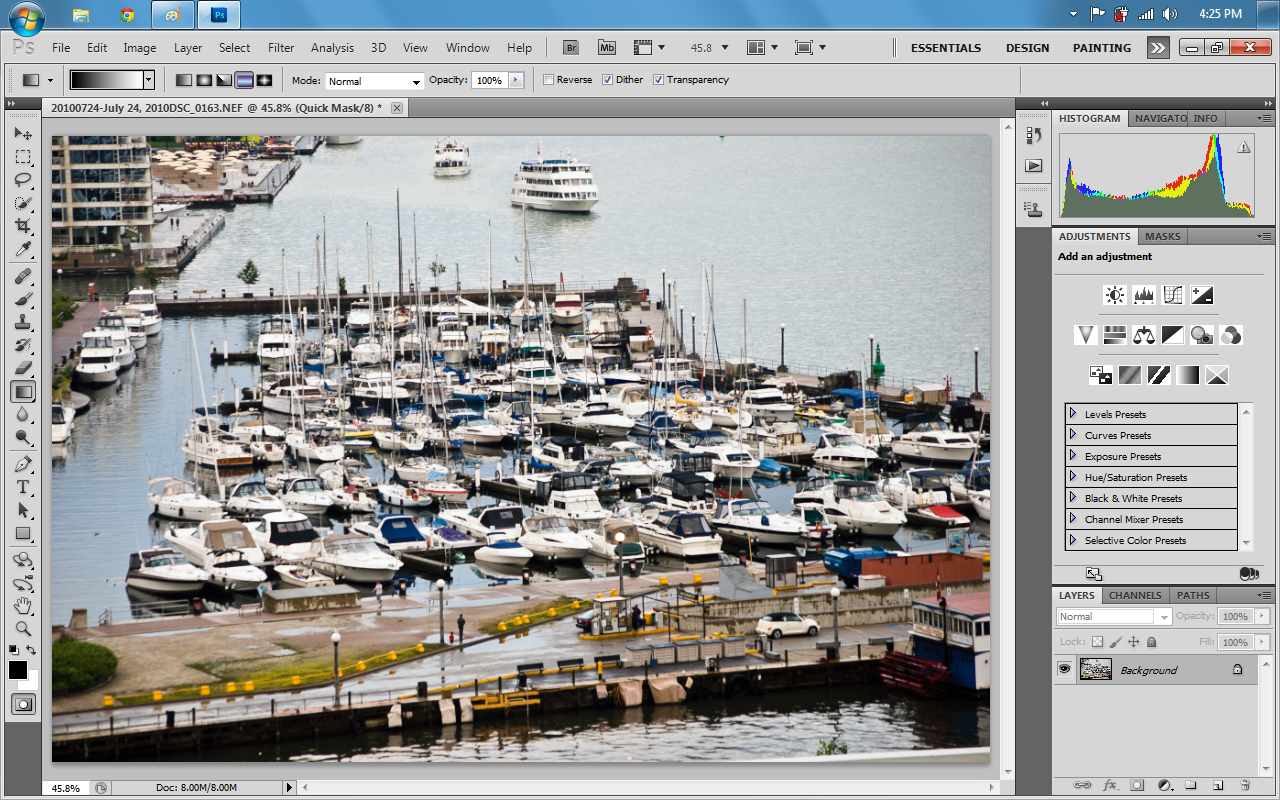
Now that you have your file open in the main photoshop window enter quick mask mode by clicking on the box in the bottom lefthand toolbar or by pressing (Q) on your keyboard.


Step 4:

Now that we are in Quick Mask mode press the (G) key or click the gradient tool on the tool bar. Make sure to select the middle gradient mode highlighted in the second screenshot.


Step 5:

Using the Gradient Tool, create a gradient across your wanted focal point of the photograph. We recommend that you play around with getting the right banded colour gradient across your subject. 


Step 6:

Now that you have found the right gradient selection, toggle off Quick Mask mode by either clicking on the toolbar at the bottom or pressing (Q) on the keyboard


Step 7: 

Now that you have exited Quick Mask mode you will notice there are selection boxes across part of your photograph, this is good, now click on "Filter" in the menu bar and go to "Blur" and then to "Lens Blur"


Step 8:

You will see a Settings dialog box open for the Lens Blur filter, you can match our settings or play around with it and figure out your own. Once you have the desired blur level, click Ok and go back to the main window.


Step 9:

Now that you have your desired blur level, click on "Select" in the menu bar and click deselect to let go of your gradients selection.


Step 10:

To increase the illusion of the photograph being of miniatures or seeming at least far away click on the Saturation levels layer tool on the right hand side and increase the colour saturation in the photograph. When you are done, be sure to select the "background" layer in the layers panel


Step 11: 

Open the Filters menu again and to to sharpen and then to Unsharp Mask. A settings box will open for you to make your desired adjustments to the sharpening effect in. Once you are done click Ok.


Step 12:

We are almost done! 
Last thing to do is to save your newfound tilt-shift photograph so you can show it off to the world. 
Go to File in the menubar and click Save As. 
Specify where you want to save it and save it as a JPEG. 
Once you have done that and clicked Save; a new dialog window will open you prompting you for settings for saving the JPEG. 
Drag the quality slider all the way to 12 or Maximum.
Select Optimized and click Ok


Step 13: 

Thats it! Go to where you saved your file and post it online and show everyone what a amazing lens you don't have. They'll never know!