Showing posts with label CS5. Show all posts

Friday, 2 November 2012

Creating the Lomography look

Creating the Lomography look 

aka. How to create your own Instagram photos

In recent years with the advent of consumer smartphones, certain apps on the app market has made it possible to take photos that look like they were taken in a Lomographic camera. These photographs usually feature odd and/or unique colouring, strong vignettes, light streaks, blur and high contrast. These apps and modern lomographic film cameras take their cues from a photographic movement that began in the 1990's when the creators where inspired by cheap russian toy cameras, such as the LOMO LC-A. 

This tutorial was created to let you create the lomographic look in a more controlled environment than Instagram or a cheap camera and with your digital camera. So dig up or take a few photos you'd like to experiment with and lets begin!

Below is a photo of James Gray, musician extraordinaire, at a wedding he played. This will be the subject for Shutter Science's tutorial.

Step 1: Open your image


Step 2: Create your selection

Select the Lasso tool and then change the feather to 70-90. Then draw a loose circle around the subject of your photo.


Step 3: Invert the selection

Now that you've slected the subject, we need to invert that selection and select everything but your selection
In the menu bar go to Select and then to Inverse, which will then invert our selections.


Step 4: Create the vignette shadow

With your selection inverted, create a levels adjustment level and tone down the mid tones and highlights of the selected rim of the subject, this will create the illusion of a vignette. After you have done this flatten your image.


Step 4: Creating the right colours

Lomographic photographs have very rich and unique colour tones, the next stop is to replicate that in our photo.

Add a curves adjustment layer now, and individually select the colour curves to play with them. You will see we went with an 'S' curve for ours, experiment to find what works best for you.


Step 4: Blurring

Lomographic cameras are notorious for having lens blur. The fourth and final stage in our tutorial will be replicating this soft focus look in our image. Duplicate your background layer and create a clipping mask on this layer.


Then select the brush tool and set it to be black. While having the clipping mask layer selected.


Create a brush the size of your subject by manually increasing brush size or pressing the '[' and ']' keys respectively to lower and raise the size. Click once to make a black spot the size of your focal area around your subject, you will not directly notice this, look in the layers panel to see the silhouette of the brushes work.


Next, after selecting the duplicated image layer, go to filter and then to gaussian blur to add your blur, the filter is quite powerful so experiment to find the right strength. After that your done! Congratulations!


Completed! 


Here's our finished photograph! Ready for sharing!


Thanks to our model James, make sure to check out his music at: 

http://www.facebook.com/jamesgraymusic1990
http://www.youtube.com/channel/UCeRWfnK5TV41F0utOJXHVLw
http://music.cbc.ca/#/artists/James-Gray



Friday, 19 October 2012

Back to the Basics Part III: ISO

Back to the Basics Part III: ISO

What is ISO?

ISO in the photographic world applies to both digital and film photography. For film cameras and photographers, film refers to the sensitivity of the chosen film medium when exposed to light. It is measured in numbers in a stepped sequence, like this: 100, 200, 400, 800. This was also an indication of how much grain would be in an image, the higher the sensitivity, the higher the film grain. When you use a lower ISO film the film grain becomes much finer.

In the digital world ISO applies again to sensitivity, but this time to the sensitivity of the imaging sensor. The same principles for choosing film ISO, applies to the digital world. A change to the ISO system exist though; the grain in your images is known noise.

How to use ISO

If the scene or you wish to photograph is well lit then it is a good rule of thumb to try to shoot as low an ISO as possible, on most modern digital cameras this will be 100, 50 on some higher end models. If it is dark and you do not have a tripod or want a fast shutter speed, a higher ISO speed can be used to capture more information in the chosen shutter speed. This however comes at a price, that prices is your image will have more grain (film) or noise (digital). This will soften your photographs and add seemingly random coloured pixels to your image. I have illustrated this below with two different pictures.
The bus drivers seat, was taken at a high ISO, 640 to be exact, you can see in the shadows the noise. Click on the image to expand.


Now for companion's sake look at this photo of a downtown street. It was taken at 100 ISO, if you click and expand you can see the low appearance of noise.


Friday, 5 October 2012

Back to the Basics Part I: Exposure

Back to the Basics Part I Exposure

Hey! Shutter Science has been writing a Camera Basics tutorial series which will start this week! We will cover the topic of exposure and how it relates to modern digital cameras. Alot of cameras come with auto functions that take care of exposure for you, while it works it does not provide you with the highest quality pictures. Understanding how exposure and how to manually control it, will provide you with a new skill set to bring to the table when you are shooting.


What you will need:

  • A DSLR or point-and-shoot digital camera with Manual function.
  • Thats it this time!

How it works

When you use your camera to take a photograph, you are exposing a digital imaging sensor to light. Before the light hits the center, there are two ways of controlling how much light is picked up by the sensor. These controls are called the Aperture and the Shutter. The latter of which this blog is named for. In order to manipulate these controls you must have a camera with manual mode.


Aperture

The aperture in your camera is a mechanical opening that changes in size to admit more or less light into the lens/camera body. The sizes it can open and shrink to are setup in measured increments and are known as F-Stops. The numbers step up from F1.4 to F5.6, F8, and F11. As the F-stops number increase in value, the smaller the opening of the aperture, and consequently the less light allowed into the camera. It is important to note that with each increase in F-stops means half as much light will be let in.

Shutter 

The shutter is a mechanical blind for the imaging sensor. It opens and closes at an again incremented and predetermined speed allowing only light to reach the sensor for so long. Shutter speeds are measured by fractions of a second, 50 means 1/50 or one fiftieth of a second, and 125 means 1/125. There are also speeds longer than a second or less, which we will touch on later.

How long you leave the shutter open for can vary depending on the situation or the scene and how bright it is. A sunny day may require a shutter speed of 1/200 and an aperture of F8, while a overcast, or cloudy day could be 1/60 with a F-stop of F4

Leaving your shutter open for different lengths of time when properly exposed by balancing out the apertures setting (ie if it is really slow such as if you are shooting a long exposure), can produce different effects in your photographs, especially where motion is concerned. A few photographs will follow to detail this.


Fast shutter speeds will freeze motion in a very clear way as opposed to the blurred effect that a long exposure creates. As you can see in this photo the high shutter speed freezes the water cascading off the rocks into individual rivulets of water. It is worth noting that any shutter speeds under 1/60 or even 1/80 for that matter are too slow to be taken while holding your camera, this will add a type of motion blur called shake to your photo. Camera shake comes from your body's inability to hold the camera perfectly still for that time period, this is okay though, thats why we have tripods.


Slow shutter speeds capture motion very differently, and any object or scene in motion on a long exposure will leave trails of motion blur as the objects travel across the scene. As you can see in the photo above, the water is smoothed out in this scene as it runs off the rocks and takes on a gassy smokey look.

Friday, 28 September 2012

TiltShift Tutorial:

TiltShift Lens Tutorial:


As you may or may not know, TiltShift lenses are a specialty type of lens that allow for adjusting the focal plane of a camera. They are commonly used to capture corrected perspective architecture shots, interesting portraits, or to create scenes that look smilar to miniatures set due to a illusory shallow depth of field (miniatures as in a model town,  or model train set). To capture the look with the lens itself will unfortunately set you back a few thousand dollars as they are high-end specialty lenses and do not come cheap. 
However thats why we have Photoshop; as we can easily emulate and create the look in a few steps!

What you will need:

  • A Digital Camera (DSLR)
  • Photoshop CS
  • A computer (OS X or PC)
  • A RAW or high resolution JPEG to edit
    • Preferably taken from a far bit of distance away from the subject. This effect works best from rooftops and high vantage points over urban landscapes

How To

Step 1:

Open Photoshop and then open your image/photograph.


Step 2:

If you are using a JPEG image skip to the next step

If you are using a camera RAW file you will be presented with the editing dialog window, where you will be able to make various changes to the look of your photograph. Edit and then carry on to the next step. 


Step 3: 

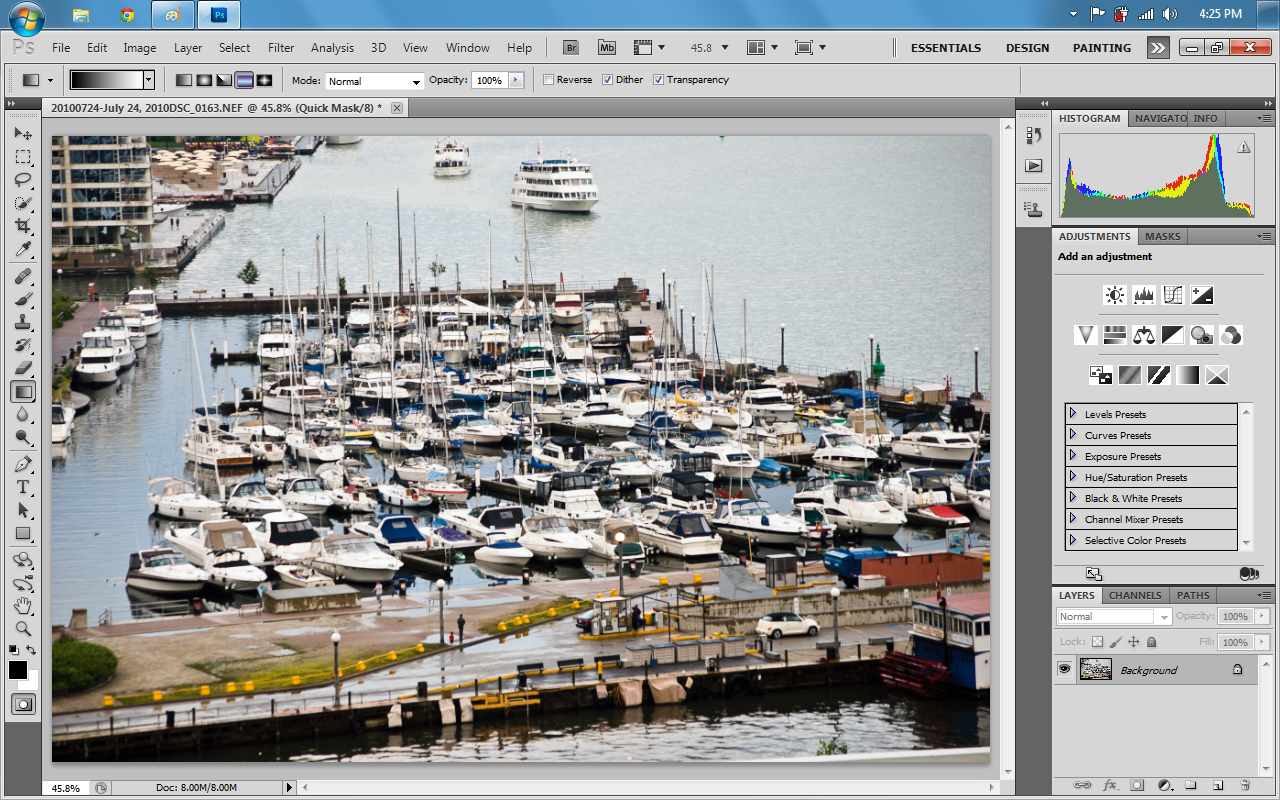
Now that you have your file open in the main photoshop window enter quick mask mode by clicking on the box in the bottom lefthand toolbar or by pressing (Q) on your keyboard.


Step 4:

Now that we are in Quick Mask mode press the (G) key or click the gradient tool on the tool bar. Make sure to select the middle gradient mode highlighted in the second screenshot.


Step 5:

Using the Gradient Tool, create a gradient across your wanted focal point of the photograph. We recommend that you play around with getting the right banded colour gradient across your subject. 


Step 6:

Now that you have found the right gradient selection, toggle off Quick Mask mode by either clicking on the toolbar at the bottom or pressing (Q) on the keyboard


Step 7: 

Now that you have exited Quick Mask mode you will notice there are selection boxes across part of your photograph, this is good, now click on "Filter" in the menu bar and go to "Blur" and then to "Lens Blur"


Step 8:

You will see a Settings dialog box open for the Lens Blur filter, you can match our settings or play around with it and figure out your own. Once you have the desired blur level, click Ok and go back to the main window.


Step 9:

Now that you have your desired blur level, click on "Select" in the menu bar and click deselect to let go of your gradients selection.


Step 10:

To increase the illusion of the photograph being of miniatures or seeming at least far away click on the Saturation levels layer tool on the right hand side and increase the colour saturation in the photograph. When you are done, be sure to select the "background" layer in the layers panel


Step 11: 

Open the Filters menu again and to to sharpen and then to Unsharp Mask. A settings box will open for you to make your desired adjustments to the sharpening effect in. Once you are done click Ok.


Step 12:

We are almost done! 
Last thing to do is to save your newfound tilt-shift photograph so you can show it off to the world. 
Go to File in the menubar and click Save As. 
Specify where you want to save it and save it as a JPEG. 
Once you have done that and clicked Save; a new dialog window will open you prompting you for settings for saving the JPEG. 
Drag the quality slider all the way to 12 or Maximum.
Select Optimized and click Ok


Step 13: 

Thats it! Go to where you saved your file and post it online and show everyone what a amazing lens you don't have. They'll never know!


Friday, 21 September 2012

Creating a Timelapse/Stopmotion video

Creating a Timelapse/Stopmotion video 


Dear Reader, 

This is ShutterScience's first video tutorial. The creation of the video does not require video capabilities on your camera, however you will need to either have a interval function, an intervalmeter, or manually take a frame as often as necessary (more on that later). We hope you enjoy the tutorial and it opens new possibilities for you when out in the field.


What you will need:

  • A Camera (DSLR)
  • A Tripod
  • Windows Live Essentials
  • Photoshop
  • Intervalmeter (Optional: only needed if taking frames manually isn't desired and your camera does not have a interval function)

How To!

Preprocessing

Step 1: 

Choose your scene/focus of the end video and setup your camera on your tripod and frame the shoot.

Step 2: 

Either set the intervalmeter/interval function on your camera to take a frame about every 5-10 seconds. How often and how many frames you capture will dictate the fluidity of the video and its length.

Step 3: (Only if you are trying to create a stop motion video, skip to 4 for solely timelapse)

Move your actors, objects or scene elements a small bit each frame and then capture that small movement with a still. Keep taking stills until you have completed your wanted animation.

Step 4:

Now that you have captured your scene, go home and upload those photos to your computer.
Having done this brings us to the next stage! Processing!

Processing

Now that you have all these files on your computer and before we can create a video you must make any visual changes to the stills you feel necessary. So open Photoshop and Open all of those photos in camera raw. Make sure to select all the photos and click synchronize so that your changes to the one are applied to all of them.

Step 1:

Now that you have your folder of images ready and have downloaded/installed Windows Live Essentials if you didn't have it already. Open Windows Live Movie Maker.


Step 2: 

Click on "Add Videos and Photos"


Step 3: Now Navigate to your folder in the "Open" dialog box and select all your photos. (make sure they are arranged by name to save you the trouble of sorting them into the correct order)


Step 4: 

Select all your photos. (Click on one and then on your keyboard press "CTRL" + "A"


Step 5:

Click the Edit tab at the top, and change the duration of your photos (make sure they are still all selected!). The shorter you make the interval for each photo the quicker the video will go. We found that for our example video .09 seconds was best. Play around with it and see what your prefer.


Step 6: 

If you want to add a Title to your video click on the "Home" tab and then click "Title" right next to the snapshot button. This will bring you back to the text tools tab where you will be able to specify settings for your video's title.


Step 7:
Next we will be adding music to our video. This is an optional step we added so you have the option to do so or not. Go back to the Home tab and now click "Add Music" a small option box will open asking you to click one of two options. We selected "Add Music at the current point".


Once the "Open" dialog box opens, navigate to your audio/music file and select it. Then click "Open"


Step 8: 
Now that you have added in your music you will notice it is above all of your slides. This is good and means you have followed the steps correctly.


Step 9: 
Now that you have laid out the groundwork to create your video; lets create it! 
Click "File" (the blue box above paste, beside the Home Tab) at the top and go to "Save Movie"


A new dialog window will open asking where to save it. Specify the location and hit "Save".

A progress bar will appear as Movie Maker makes your video!


When it is completed, you will be presented with a window saying "Play Movie" or "Open Folder". Click whichever you prefer, however if you click "Open Folder" it will open a new Window to your video's location.


Step 10:

Your done! Congratulations on creating your first Timelapse or Stopmotion video!

You can find the example video "Setting up a Tent: a Timelapse" on the ShutterScience YouTube Channel through this link:

http://youtu.be/ArXLzktS3fE

Or just Click Play!